
Your MyCampus session has just expired in the middle of an online exam, or the platform displays an error when submitting a file. Stress levels rise, and the temptation to click everywhere is strong. However, contacting the right person at the right time makes the difference between a problem solved in a few minutes and several days of delay.
MyCampus Connection Error: The Microsoft Reflex First
The platform mycampus.eduservices.org relies on a Microsoft authentication layer (Azure AD). Specifically, when you enter your credentials, it is the Microsoft server that validates your access, not MyCampus directly.
This distinction matters. If the login page displays an error message, the problem often lies with the Microsoft account, not the platform. The first reflex is to use the “Can’t access your account?” link visible on the official login page. This recovery process allows you to reset a password or unlock a locked account without waiting for a response from technical support.
You can also access the technical support of J’aime Mon Job to find the detailed procedure according to the type of blockage encountered.
Before sending a message to support, check three quick points:
- The account used is indeed the one provided by your school (professional Microsoft 365 address), not your personal Outlook address.
- The password has been initialized at least once since the start of the school year, as some accounts remain inactive until the student has set their own password.
- The browser does not block third-party cookies, which prevents the authentication redirect from functioning properly.
School Support or Eduservices Support: Knowing Who Manages What
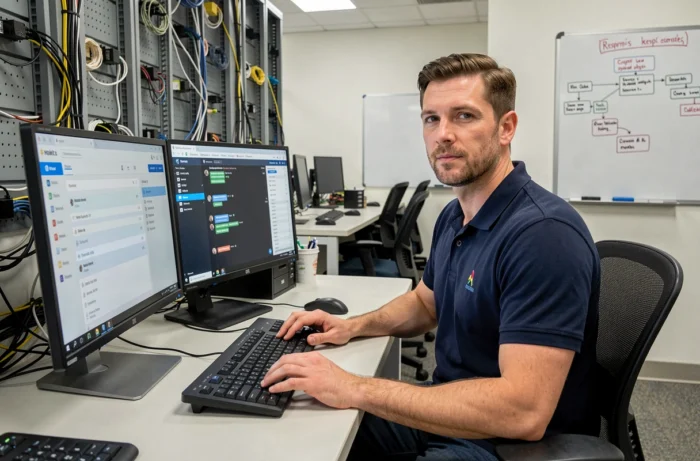
One of the main causes of delays in resolving a technical issue is sending the report to the wrong contact. Your school’s local support and the national Eduservices support do not handle the same incidents.
What Your School’s IT Department Can Resolve
Your school manages everything related to your digital identity: account creation, password reset when the Microsoft procedure does not work, and access to courses. If you can’t find a module in your space, it is generally a registration issue on the local administration side.
The school’s IT department also handles questions related to the campus Wi-Fi network, self-service stations, and locally installed software.
What Falls Under Eduservices Platform Support
If the MyCampus platform itself is down (blank page, server error, widespread slowness affecting multiple students), the problem exceeds your school’s scope. A server incident should be reported to Eduservices support via the group’s contact form.
The official Eduservices group website offers a general form accessible from their contact page. No emergency number or hotline available at all times is publicly documented. Therefore, prioritize a precise written message, sent as early as possible on a business day.
Writing a Support Request That Speeds Up Processing
A vague message like “it’s not working” prolongs the delays. The technician receiving your request needs concrete elements to reproduce the problem on their end.
Describe the exact context: browser used, operating system, time of the blockage, and error message displayed. A screenshot is often worth more than a long paragraph. If the error displays a code (such as “AADSTS” followed by numbers for Microsoft errors), copy it exactly into your message.
Also specify whether the problem affects only your account or if other students in your class are experiencing the same difficulty. This information helps support distinguish between an individual incident and a broader outage.
- Provide your full name, your school, and your institutional email address so that the technician can identify your account without back and forth.
- Mention the steps already attempted (password reset, cache clearing, trying another browser) to avoid being asked to redo them.
- If the problem is urgent (ongoing exam, submission deadline), state it in the first line of the message so that it is prioritized.
Technical Problem During an Exam: The Right Reflexes in an Emergency
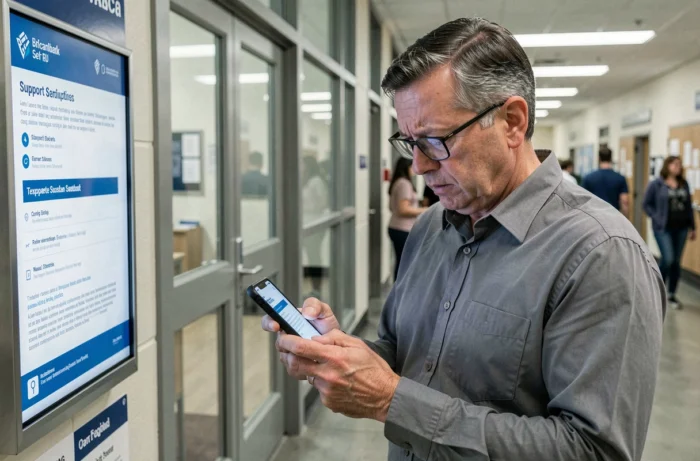
A blockage during an online exam should not be handled like an ordinary bug. Immediately notify your supervisor or your class representative, even if you think you can resolve the issue on your own. This report creates an official record that protects your academic situation.
Take a timestamped screenshot of the error message. On Windows, the combination “Windows + Shift + S” allows you to select a specific area of the screen. On Mac, “Cmd + Shift + 4” does the same thing. This dated proof will be useful if you need to request an adjustment or a postponement.
If the campus internet connection is at fault, switch to your phone’s 4G or 5G connection in hotspot mode. This backup solution resolves a significant portion of local network-related blockages without waiting for IT support intervention.
Finally, do not close your browser or your session hoping that a restart will resolve the problem. Some exam platforms record session closure as an abandonment. Keep the window open and wait for instructions from your supervisor before taking any action.
The MyCampus support does not currently have a publicly documented real-time emergency channel like chat or phone. The best protection remains preparation: test your connection and your credentials the day before each deadline, not on the same day.