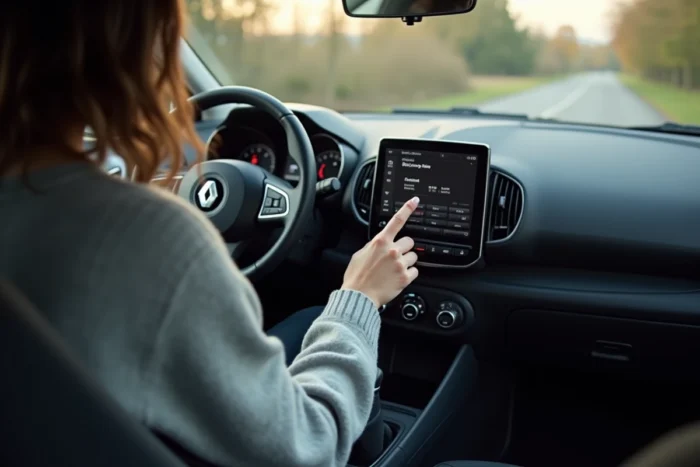
The Renault Clio 3, depending on the version and the factory-installed radio (Update List, Radiosat, or Cabasse), does not always have an active Bluetooth module. The “TEL” button on the front of the radio may exist without the function being operational. Before attempting to pair, you must first determine whether the embedded system natively supports Bluetooth or if an external accessory is required.
Native Bluetooth or external module: what the Clio 3 radio really supports
The confusion arises from the “TEL” button present on most factory radios. On some trims, this button activates a real integrated hands-free system. On others, it does nothing unless an additional Bluetooth module is connected behind the radio.
To find out which category your Clio 3 falls into, press the “TEL” button. If the screen displays a phone menu with a device search option, Bluetooth is native. If the screen remains unchanged or shows “No phone,” the vehicle does not have the original module, and you will need to use an external box or an auxiliary cable.
Many owners discover this limitation after purchase, as the physical presence of the button leads to the belief that the functionality exists. The procedure described below covers both cases: activating Bluetooth on Renault Clio 3 directly depends on the hardware configuration of your radio.
Activate the AUX source: hidden step on Update List radios
If your Clio 3 is equipped with an Update List radio without native Bluetooth, installing an external Bluetooth box requires using the auxiliary input located at the back of the unit. The box connects to this input and streams the phone’s sound through the vehicle’s speakers.
The trap lies even before the connection. The AUX source is disabled by default in the Update List radio menu. Without this prior activation, the Bluetooth box connected via auxiliary will never be selectable, even if it is properly connected.
Procedure to activate the auxiliary input
- Press and hold the knob button on the radio for a few seconds to access the hidden menu (the “expert” or “source” menu)
- Navigate to the “AUX” or “Auxiliary Source” option and switch it to “ON”
- Confirm, then return to the main screen and select the AUX source using the “SRC” or “SOURCE” button
Once the auxiliary input is activated, the external Bluetooth box appears as an audio source. This manipulation only needs to be done once: the setting remains saved even after the ignition is turned off.
Bluetooth pairing on Clio 3 with native module
For Clio 3 models with integrated Bluetooth, the pairing procedure remains simple but requires some preliminary checks on the phone.
Prepare the phone before pairing
Activate Bluetooth in your smartphone settings and make the device visible to other devices. On Android, this option is found in Settings > Connections > Bluetooth. On iPhone, simply open the Bluetooth settings: the device becomes automatically detectable as long as this screen remains displayed.
The Clio 3 system can remember up to five paired phones, but only one phone can be connected at a time. If another device is already connected, disconnect it first from the radio’s phone menu.
Start the search from the radio
Press the “TEL” button on the radio. Access the “Settings” or “Devices” menu, then select “Device Manager” and “Add.” The system will start searching for nearby Bluetooth devices.
Your phone’s name will appear on the screen. Select it, then confirm the pairing code displayed on the phone and on the radio (both must match). Once confirmed, the phone will automatically connect when the vehicle starts.
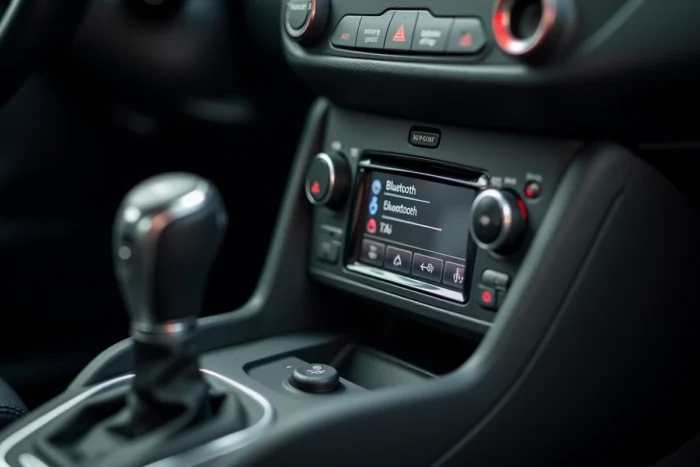
Bluetooth profiles HFP and A2DP: phone and music do not work the same
A successful pairing does not mean that all audio functions are available. Car Bluetooth relies on two distinct profiles, and the Clio 3 does not always manage them the same way depending on the system version.
- The HFP (Hands-Free Profile) manages phone calls: making and receiving calls through the vehicle’s speakers, with the built-in microphone
- The A2DP (Advanced Audio Distribution Profile) manages stereo audio streaming: music, podcasts, voice GPS navigation
- If only the HFP profile is active, calls work but music from the phone does not play through the car speakers
On some Clio 3 models with native Bluetooth, only the HFP profile is supported. Streaming music via Bluetooth is then not possible without a compatible A2DP external box. This limitation is almost never mentioned in the original documentation.
To check, play a music track on your phone after pairing. If the sound comes from the phone and not from the car speakers, the A2DP profile is not supported by your radio. The solution then involves a Bluetooth adapter connected to the auxiliary input, as described earlier.
The distinction between these two profiles explains most of the disappointments encountered after the first pairing. A Bluetooth that only streams calls is not faulty: it does exactly what it was designed to do on this generation of vehicle.